




Hunting
Introduction
Hunting is perhaps the most versatile of professions on Planet Calypso. The related skills and knowledge is used for hunting, self-defence, PvP encounters and simply to survive as a colonist.
Equipment
Weapons, ammunition, weapon accessories, armor, first aid. These are just some of the tools of the hunter’s trade.
To get started with hunting you need at least a weapon and, for ranged weapons, ammunition.
As a new colonist you can take the opportunity to try start building your handgun skills by following the mission chain in the start area.
To get your own gear with a well balanced entry level carbine with scope and a good looking armor set you can buy a starter pack in the Entropia Universe Webshop.
Weapons
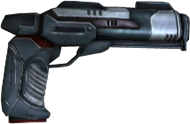
New Arrival to beginner-level ranged and melee weapons can also be bought from the Trade Terminals on the actual Planet Calypso.
More advanced weapons can be manufactured, looted, or obtained from other colonists, either directly or through the Auction or Shops. When looking for a new weapon make sure it matches your current skills for the best efficiency and economy.
To equip a weapon, right click the weapon’s icon in your inventory and choose Equip from the context menu. You may also assign your weapons, first aid package etc. to your keyboard keys for fast weapon and item switching.
To use a weapon, i.e. fire or hit with it, simply press the left mouse button while in Aim Mode.

Ammunition
Ranged weapons like cannons, carbines, pistols and rifles require ammunition, which is obtained from the Trade Terminal. To find out which type of ammunition your weapon requires, right click the weapon in your Inventory and open the Item Info panel. The panel displays complete operational stats for the weapon, including its ammunition type.
The latest technical inovations in Entropia has introduced the special ammunition type "Universal Ammo". It may be used by most ranged weapons, including BLP and Laser weapons.
Reloading of a weapon is performed automatically. However, different weapons have different reload times. The reload process is indicated by the small blue Reload Bar, located in the lower center area of your on-screen HUD.
The current ammunition level is also displayed next to the Reload Bar. Different weapons consume different amounts of ammunition, so keep an eye on your ammunition levels.
 Scope
ScopeWeapon Attachments
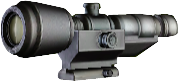
Weapon attachments include scopes, laser sights and amplifiers that can attach to both guns and melee weapons. They serve to improve the performance of weapons. Weapon attachments can be manufactured, looted, or obtained from other colonists, either in direct trade or through the Auction or Shops.
In your Inventory, drag a weapon attachment over the icon of the weapon you want to enhance. If the corners of the weapon icon turn green, it's a valid attachment. Release the mouse button. The weapon part is now attached to your weapon.
To separate an attachment, right-click on the weapon and left-click 'Detach Attachments' in the context menu . The attachment will then be separated from the weapon.
Armor
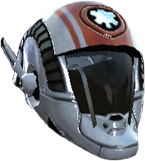
If you attack a creature, it is very likely that it will fight back. If a creature hits you, you will take damage and lose health. Armor pieces absorb some or all of the incoming damage when hit on the protected body part.
Beginner-level armor is available for purchase from the Trade Terminal or in the Starter Packs. More advanced armor can be crafted or obtained when hunting or from other colonists. Keep an eye on your health indicator when hunting!
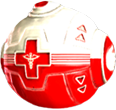 First Aid Pack
First Aid Pack
The Health Bar displays your avatar name and current health status. It is located in the lower right corner of your HUD.
Health restores itself slowly over time, but you can restore it faster by using a first aid pack. When necessary, equip your first aid pack and operate it to replenish your health. Operate the first aid kit by left-clicking in aim mode.
First aid can also be administered on other colonists. Simply equip the first aid pack, aim it at your friend, and operate it.
A beginner-level first aid pack is available for purchase from the Trade Terminal or in some of the Starter Pack kits. Advanced medical equipment can be obtained from other colonists, either in direct trade or through the Auction or Shops.
Loot
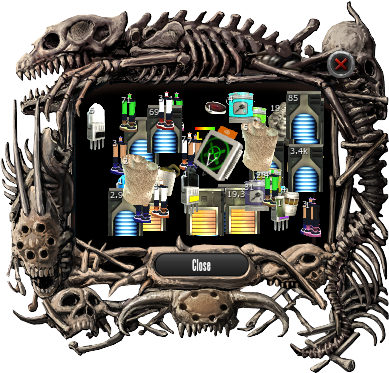
Once you've successfully hunted your prey, you will want to find out if there is anything valuable that you can loot from it.
To loot a creature in Cursor Mode, right-click the dead creature and choose 'Loot' from the interaction menu. To loot a creature in Aim Mode, simply right-click the dead creature.
When loot has been found, a loot window will appear, displaying the creature’s loot. The loot is automatically transferred to your inventory. Simply click ‘Close’ in the loot window when you’ve finished inspecting it.
Hunt in Teams
In order to tackle some of the most dangerous creatures, colonists often form hunting teams.
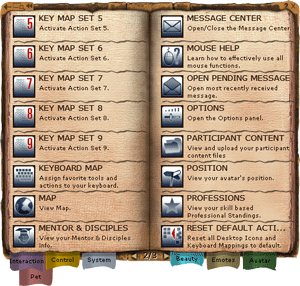
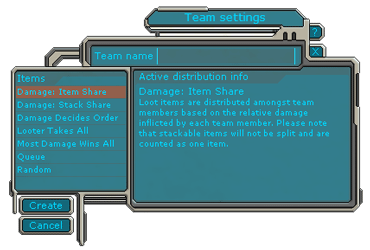
To begin setting up a team click the Team Icon in the Action Library (Default: N). The Team Settings Panel will allow you to configure your team and the team's loot distribution rules. A team may have up to twelve members. While it is possible to have a one-man team, loot cannot be acquired under such circumstances. The team must have at least two members for looting to work.
Once your team has been set up, just right click on any other avatar and select Avatar -> Team Invite from the interaction menu. When the team leader quits the team, the team is automatically disbanded.

Team Looting Rules
When a team leader creates a team, a set of team loot rules are chosen that determine how team loot is distributed between the team members. The various loot distribution rules are:
- Damage: Item Share - Loot items are distributed amongst team members based on the relative damage inflicted by each team member.
- Damage: Stack Share - Loot items are distributed amongst team members based on the relative damage inflicted by each team member. Stackable items will be split.
- Damage Decides Order - The team member who inflicts the most damage receives the highest valued loot item. The member who inflicts the second highest damage receives the second highest valued item, etc.
- Looter Takes All - The team member that loots a dead creature always receives all items found. When looting another participant, the loot is given to the team member that inflicted the most damage.
- Most Damage Wins All - The team member who inflicts the most damage receives all the loot items present.
- Queue - The first found item is given to team member number one, the next item to member two etc.
- Casual - Any item present in a loot is casually distributed to any team member.
Disbanding a Team
If you are alone in your team, you must remember to disband it before you go hunting. If you are alone in a team you will not be able to get any loot.
The team settings panel can also be accessed by, while in Cursor Mode, right-clicking, and selecting System -> Team in the context menu.
